
Using the extension for the first time
Run your first applet with the CheerpJ browser extension for applets
This page shows how to run an applet with the extension. It assumes you have installed the extension in Chrome or Edge and pinned it to the toolbar.
Before you enable it

Open a page with a Java applet, such as this public Rubik’s Cube applet. Without Java, the page shows a message in place of the applet, saying that Java isn’t installed or the plug-in is missing.

Enable the extension for the site
Click the extension’s icon in the toolbar and turn on Enable for this domain. The browser asks you to let the extension read and change the site: allow it. The page reloads.
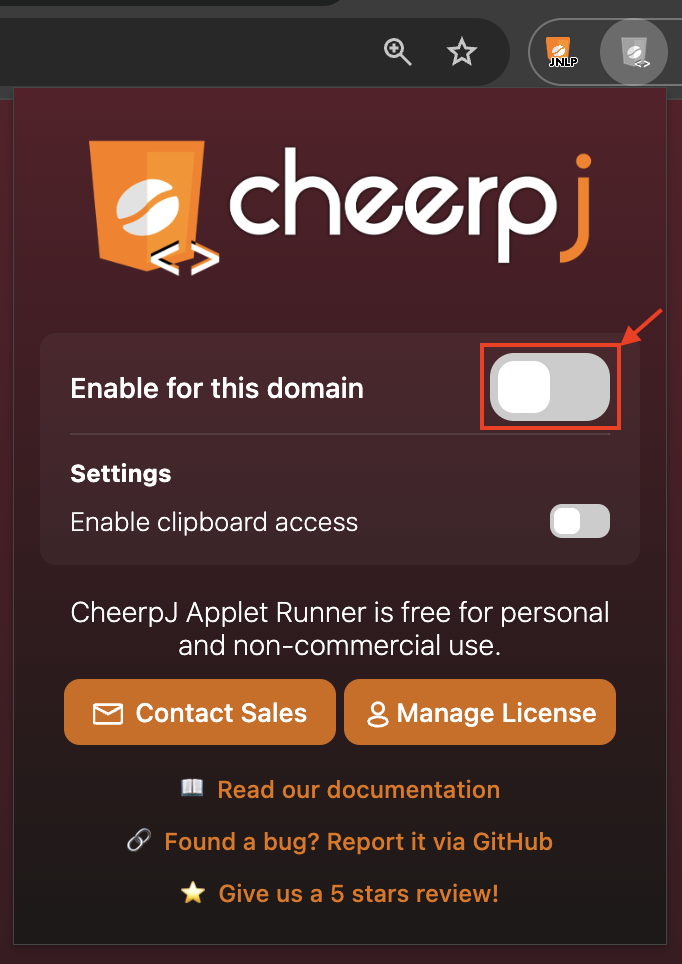
The applet now runs in place, on the page.
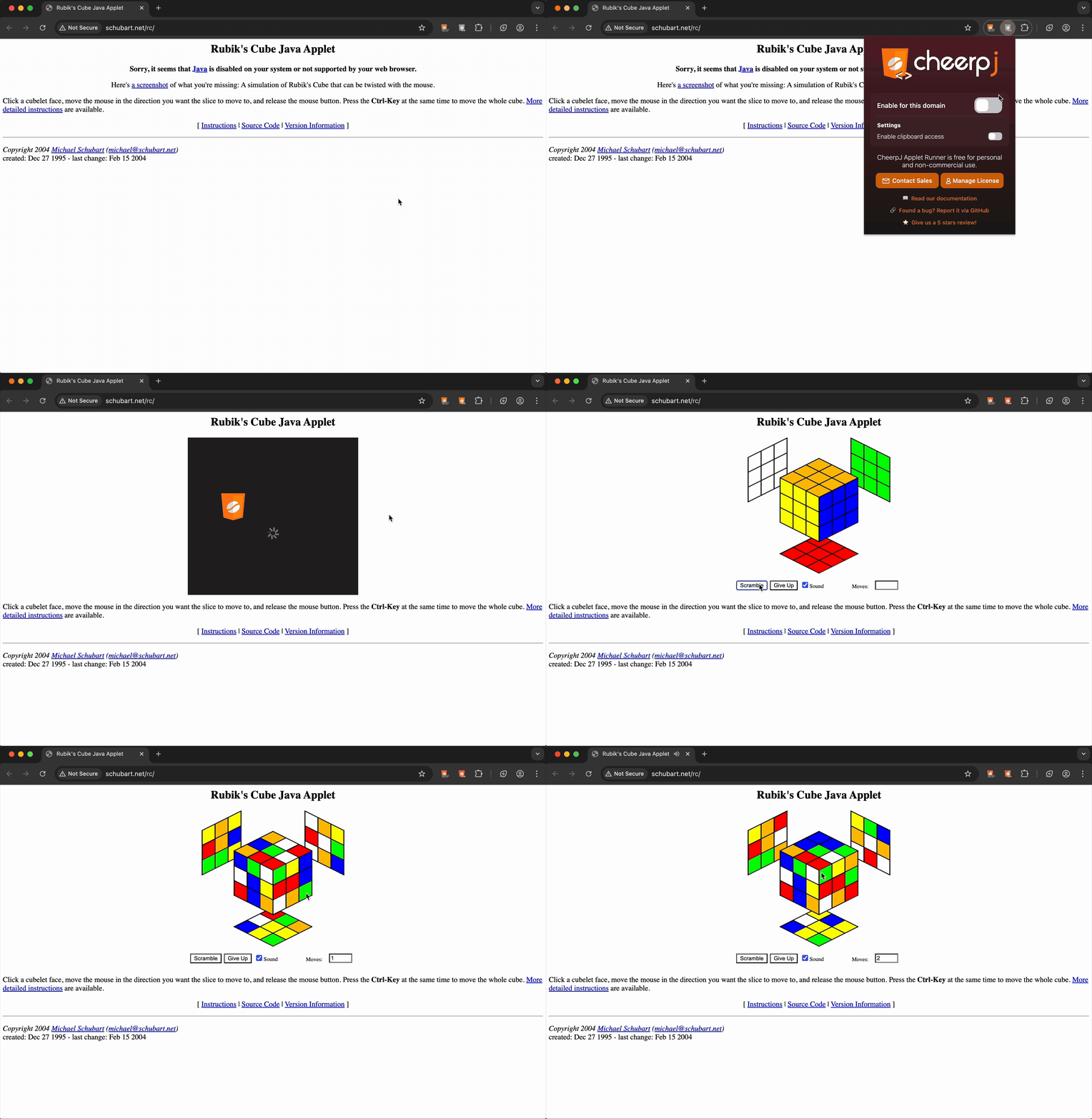
The extension stays on for that site, so its applets start by themselves next time. To turn it off, open the popup again and turn off Enable for this domain.
What else is in the popup
- Upload file, while an applet is running, to give the applet a file from your computer. See upload and download files.
- Enable clipboard access, to copy and paste between the applet and your other applications.
- Enable debugging mode (slow), to collect logs for a bug report. See how to debug the extension.
- Advanced settings, for display scaling, keyboard shortcuts, applet parameters and a Tailscale network.
- Manage License, to activate a licence.
- Report a Bug, which opens an issue on GitHub with the page’s address filled in. Issues are public: for an applet on an internal or private site, write to appletrunner@leaningtech.com instead.