
Using the extension for the first time
Run your first Java Web Start application with the CheerpJ browser extension for Java Web Start
This page shows how to run a Java Web Start application with the extension. It assumes you have installed the extension in Chrome or Edge.
Run a .jnlp file

A Java Web Start application starts from its .jnlp file. You can:
- click a link to a
.jnlpfile, as you always have; - open a
.jnlpfile from your computer; - drag a
.jnlpfile onto the extension’s popup.
The extension stops the download and runs the application in a new tab instead.
Accept the licence agreement
The first time you run an application, the extension shows its licence agreement. Read it and, if you agree, click Accept license. You can also read the full end-user licence agreement .
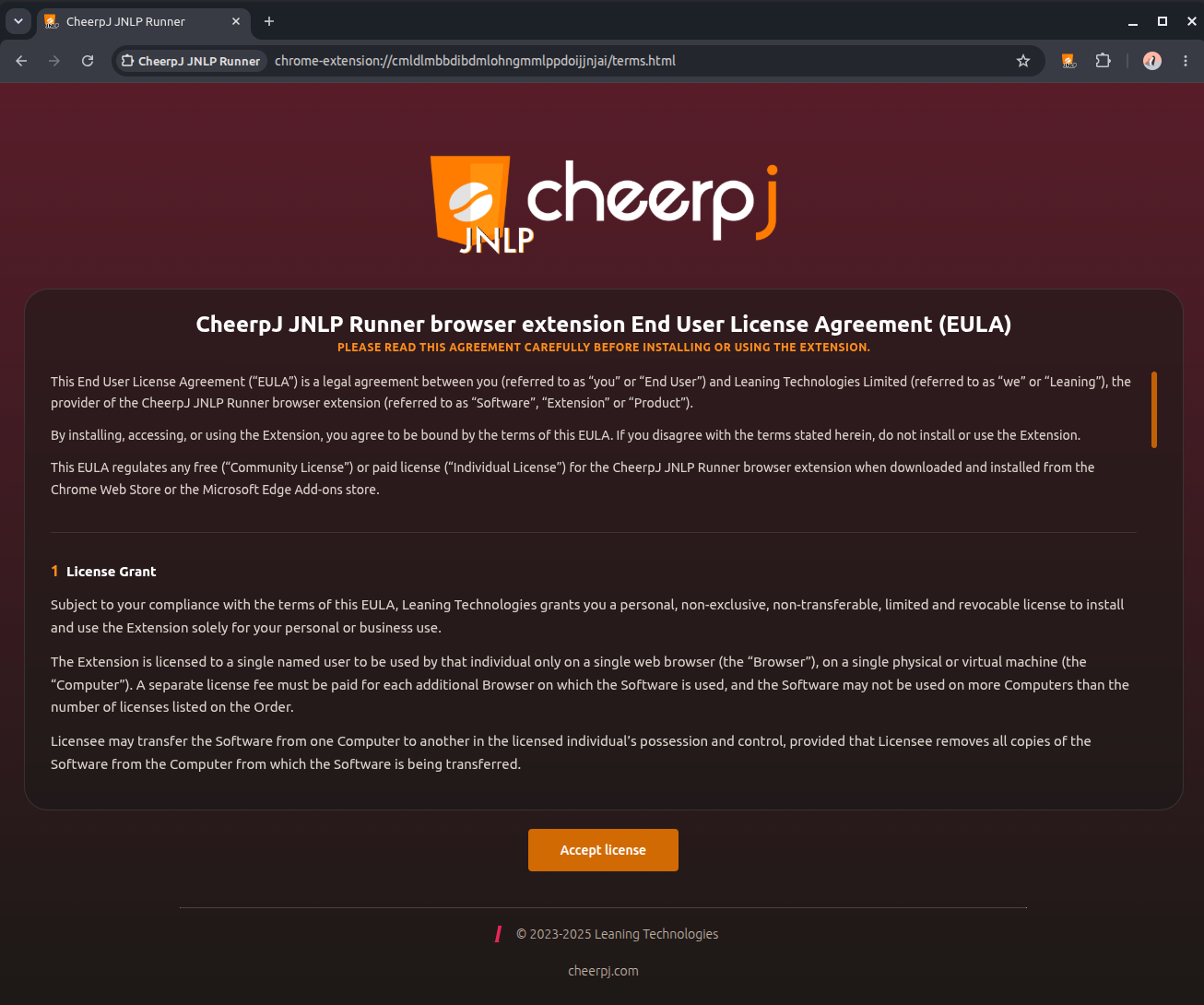
The side panel
The application starts in its tab, with a side panel on the left. Hover over the panel to expand it.
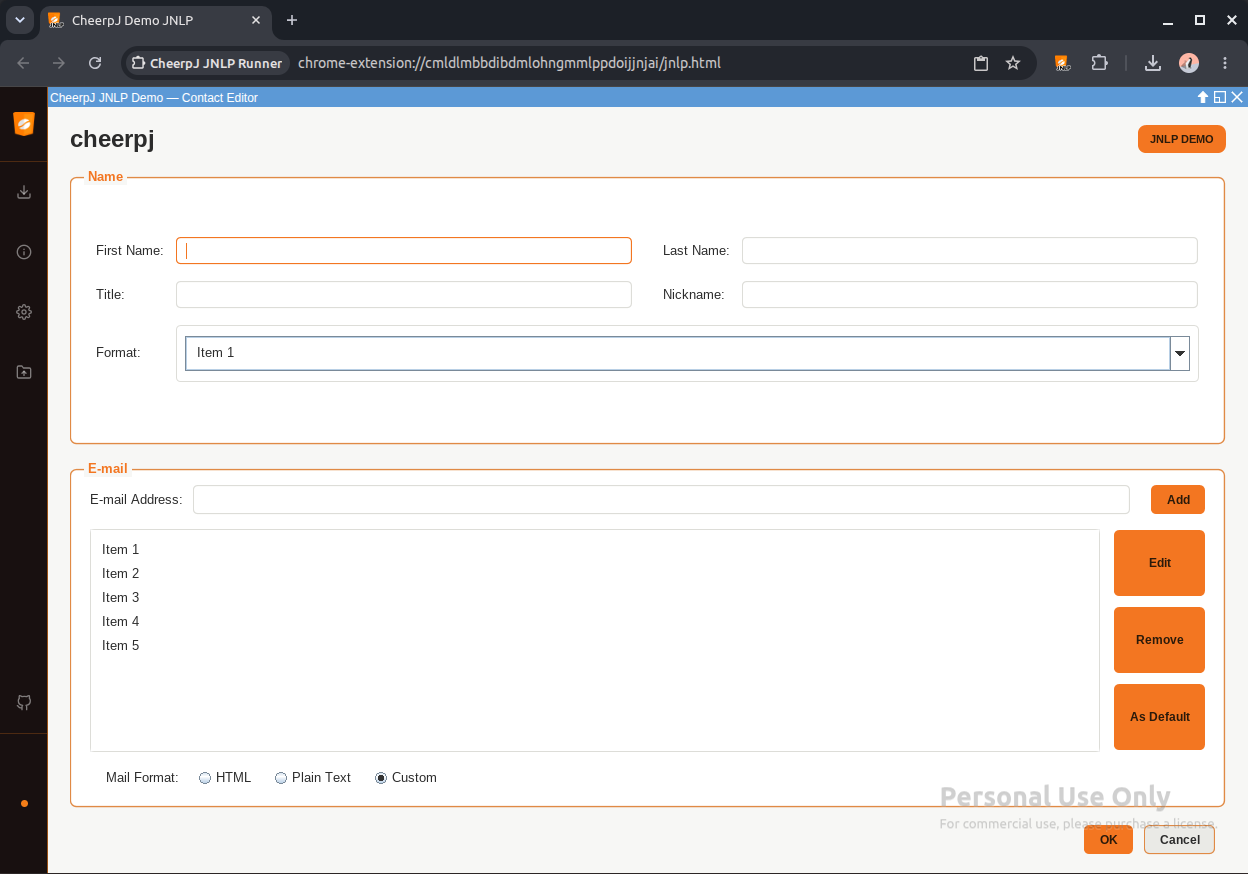
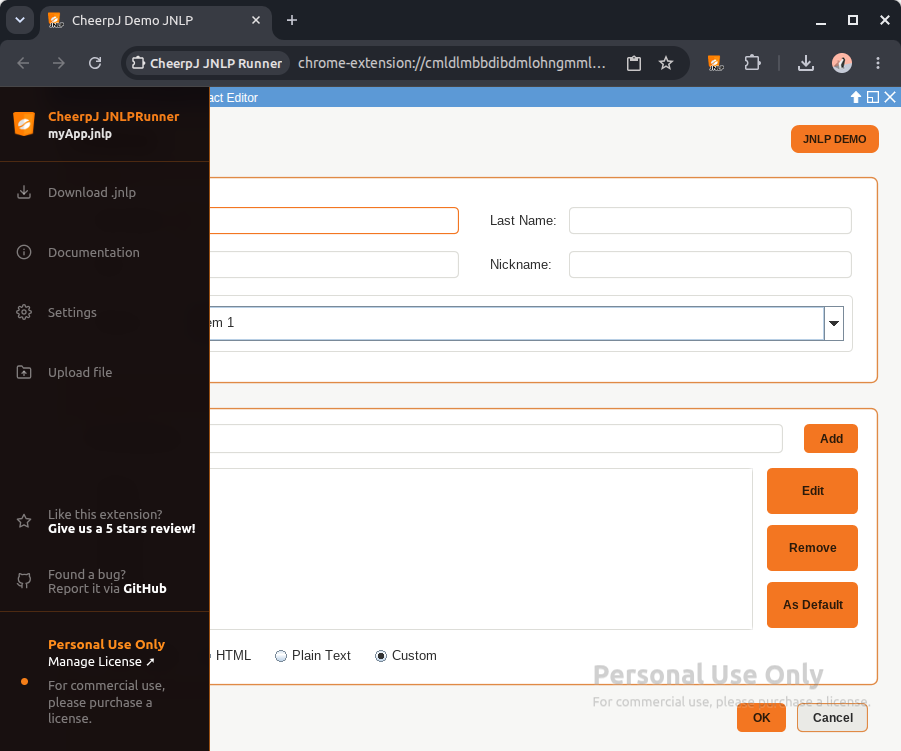
The side panel has:
- Download .jnlp, to save the running application’s
.jnlpfile to your computer. - Settings, the extension’s advanced settings: debug mode, display scaling, keyboard shortcuts and a Tailscale network for applications that open TCP or UDP sockets.
- Upload file, to give the application a file from your computer. It arrives in
/files/uploads/. See upload and download files. - Manage license, to activate a licence.
Once a licence is activated, the side panel is hidden. To show it again, turn on Show Sidebar in the advanced settings.
If the application doesn’t start
The extension offers to send us a report. A report includes the .jnlp file, which can name your organisation’s internal servers, so it is only sent if you choose to. You can also use Report a Bug in the extension’s popup, which opens a public issue on GitHub. For an internal or private application, write to jnlprunner@leaningtech.com instead. See how to debug the extension.